Quick Start
This guide helps you get started with a template, a guided tutorial, or a basic single-projector scene of your own.
1. Create a new project
- Sign in and open your Projects dashboard.
- Click New Project.
- Give it a name and click Create.
The 3D workspace opens with an empty scene.
2. Choose how to get started
When the workspace opens, go to Guided Tutorials first. From here, you can start with a ready-made template or follow a short, step-by-step interface tutorial.
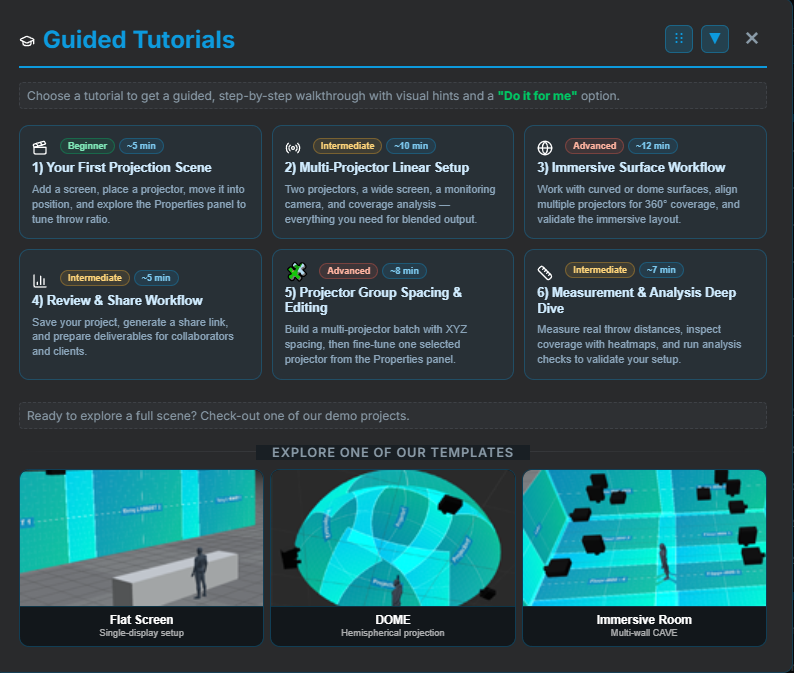
Choose the template closest to the experience you want to design:
- Flat Screen — a simple single-display setup and the best starting point for a standard projection.
- Dome — a ready-made hemispherical projection setup.
- Immersive Room — a multi-wall room for immersive projection.
Alternatively, choose one of the Guided Tutorials. For your first visit, Your First Projection Scene introduces the main controls while helping you add and position a screen and projector. The other tutorials cover multi-projector layouts, immersive surfaces, analysis, measurements, and sharing.
If you load a template, the main scene elements are already included. Explore them in the workspace, adjust them as needed, and then continue with Run analysis. To build the scene yourself, continue below.
3. Add a screen
- Choose Add → Add Screen / Object.
- Choose Flat Screen and set a width and height (e.g. 4 m × 3 m).
- The screen appears in the centre of the scene. Use the transform handles or the Properties panel on the right to position it.
4. Add a projector
- Choose Add → Add Projector.
- Select a model from the projector library, or choose Add Generic Projector.
- Move the projector to a position in front of the screen using the 3D handles or by typing coordinates in the properties panel.
5. Run analysis
- Open the Analysis section in the workspace toolbar.
- Choose Brightness.
- Select Lux as the measurement type, then select Run Analysis.
- Use the heatmap and results panel to compare the dimmest, average, and brightest areas of the screen.
See Analysis for the other available modes.
6. Export or share
- PDF report — open Share → Create PDF report to build a formatted document with specifications and screenshots.
- Share link — open Share → Share Link to create a password-protected interactive 3D link.
Next: The Workspace